


Save a knowledge item in the right folder from the start (beta)
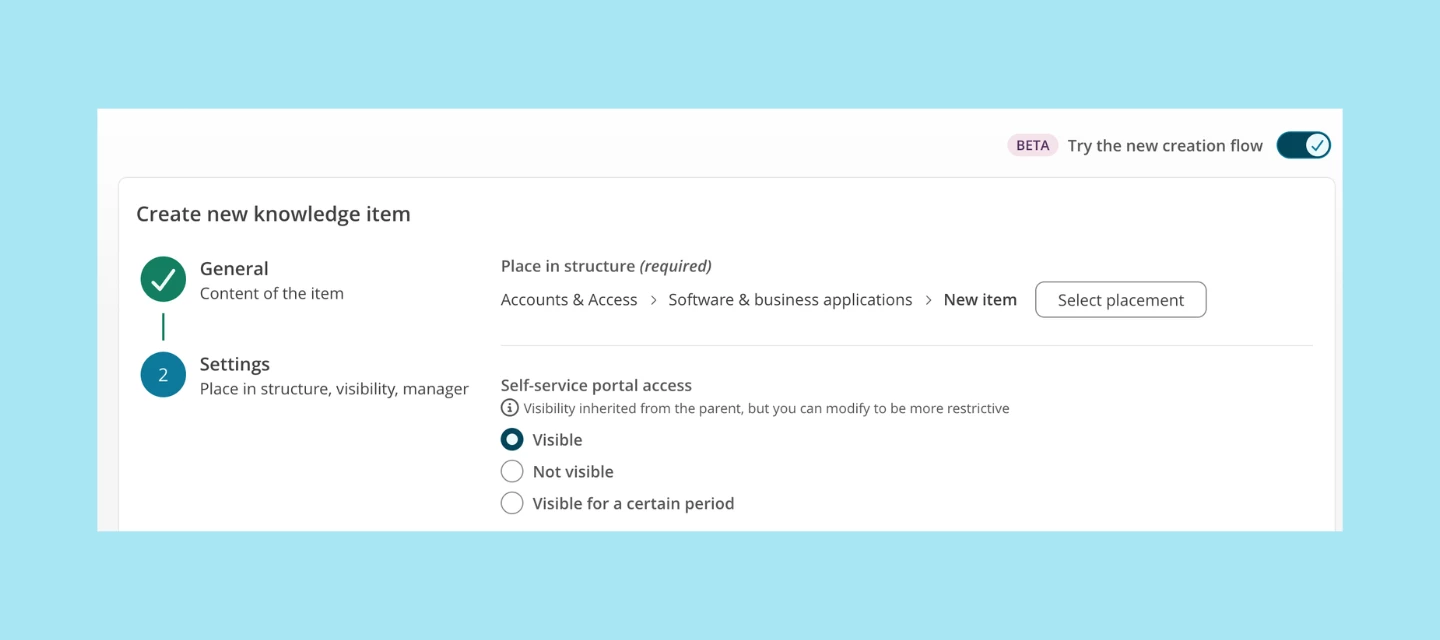
You can now choose any folder in your knowledge base when you create a knowledge item (KI), however deep it sits. No more moving KIs afterwards. To use it, you need to work with the new knowledge management. The new flow is in beta, so you decide when to switch.
What changed
Until now, a new KI could only be saved in a top-level folder. If it belonged in a subfolder, you had to move it yourself. A forgotten move or a timed-out session could leave the KI lost along the way.
Creating a KI is now a simple two-step flow. While you create it, you pick the folder, at any level of your structure.
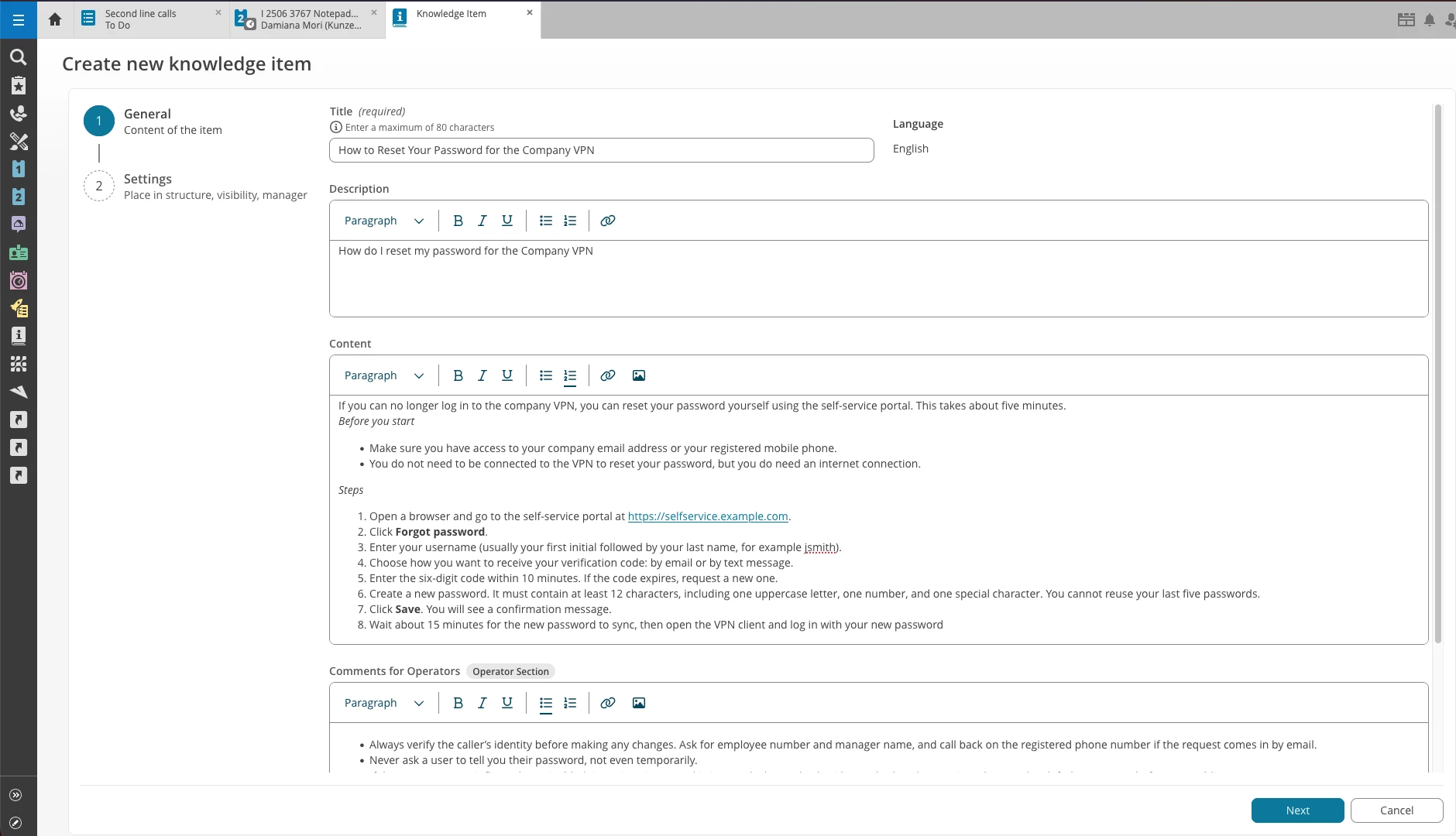
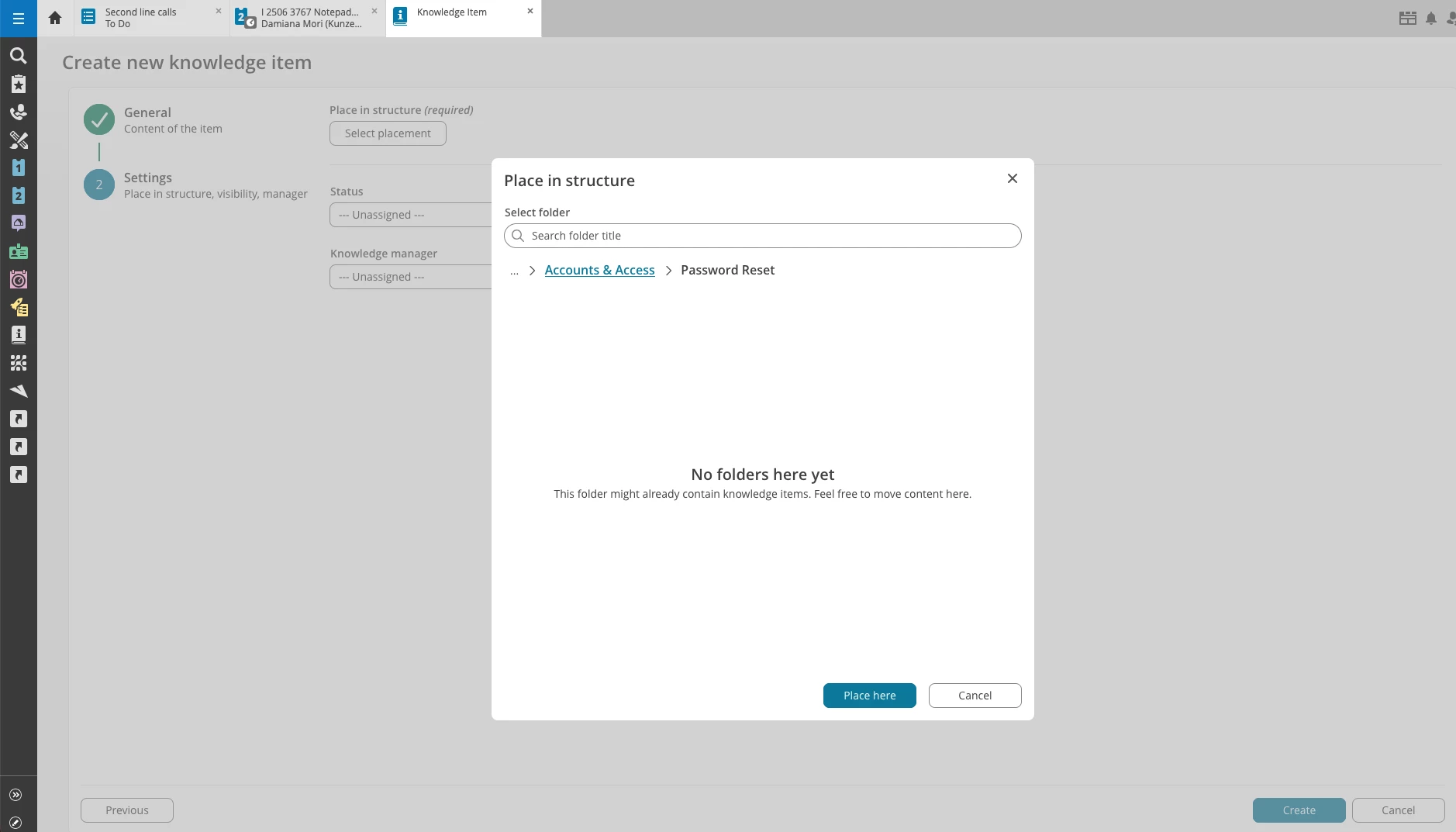
What this looks like in practice
- From an incident: You resolve an incident and write a KI from it. Your folders go Hardware > Printers. Before, you could only pick Hardware. Now you pick Printers right away. This also works with Robin and the KI generation AI feature.
- From the sidebar shortcut: Click through your nested folders and save the KI in place. No more landing in the main folder.
- No more lost KIs: Your KI is saved in the right place from the start, so there’s nothing to forget.
Beta, and what’s next
The new flow is available if you use the new knowledge management. Switching is simple: do it right on the create page, whenever it suits you. It will become the default once the new edit UI and drafting & publishing are available. We’ll share more when we can.
Try it and tell us what you think
Tell us in the comments how the new flow works for you, and what else would make managing your knowledge base easier.