


Responsible data management: set up exceptions
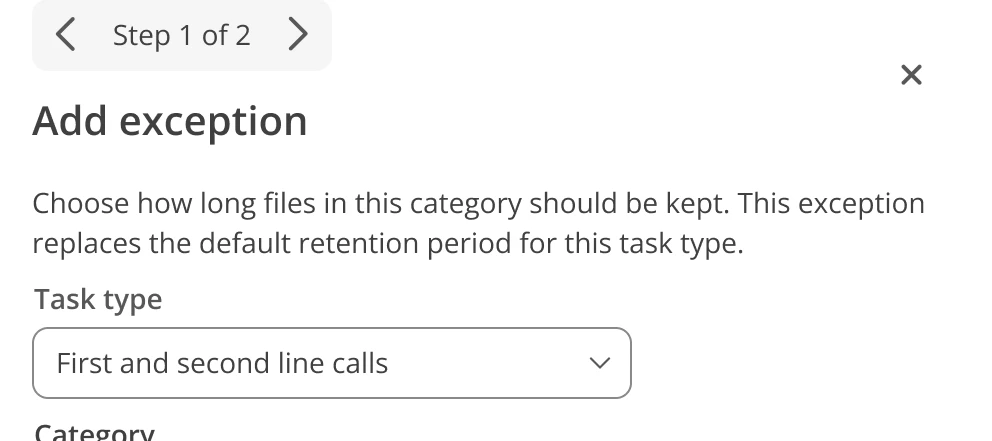
Last month, the redesign of the Personal data protection and File maintenance settings pages was finalized. By grouping together a few settings, and adjusting the overall structure and look of the page, the user experience has improved. With less retention periods to manage, you’ll feel more in control over your file maintenance settings.
Add exceptions for specific categories
Within the File maintenance settings, part of the Responsible data management section of the functional settings, we recently grouped various options. While this simplifies the settings page, we can imagine that you still need ways to further specify a retention period. For example, do you need to remove attachments from HR incidents after just a few days, while files in security incidents need to be available for a few months? If the answer is yes, the new Exceptions section will help you out.
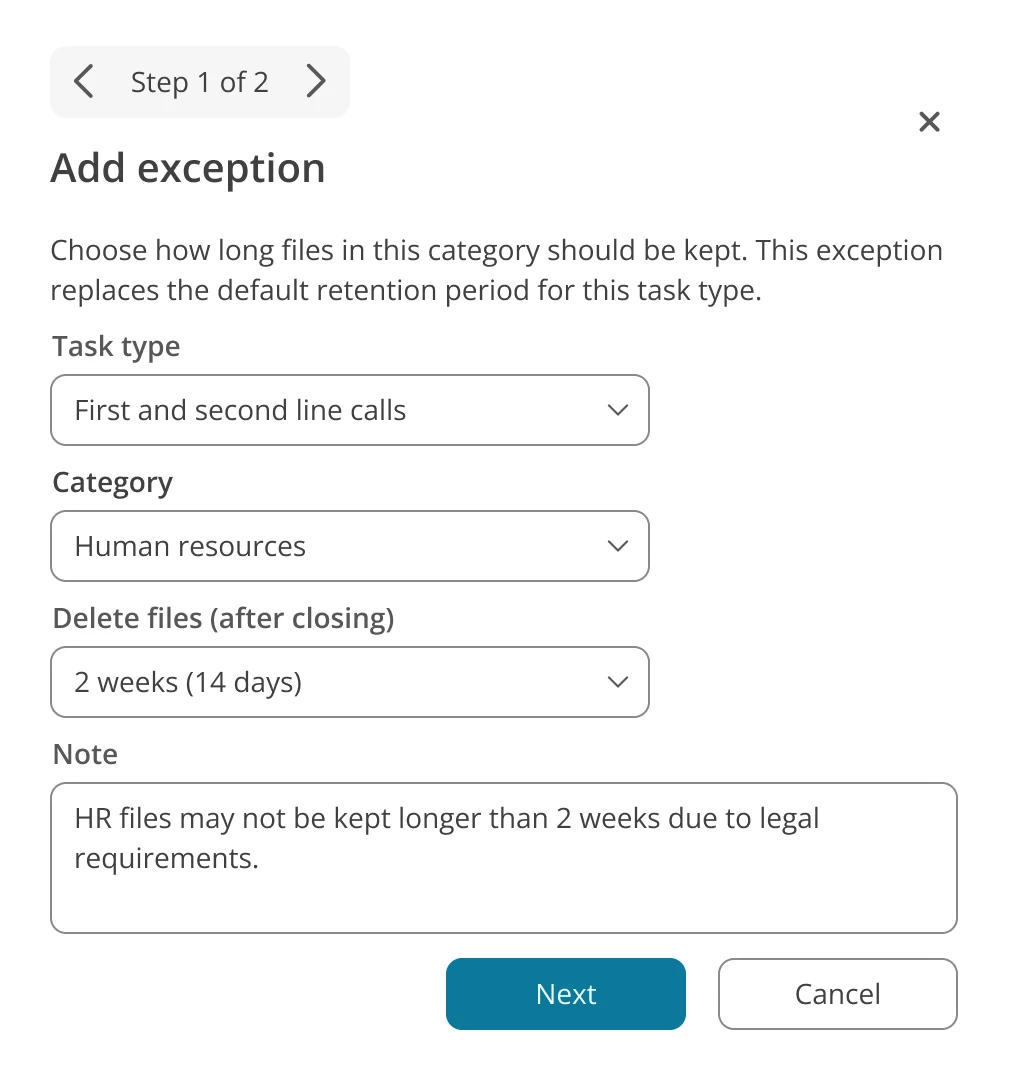
Within the Delete files from tasks block, you’ll find the new Exceptions feature. To add a new exception, click Add exception. In the menu, you’ll fill in a few fields:
- The task type for which the exception should be configured, such as incidents or changes
- Which category it concerns
- What the retention period is for this category
- A note, in which you can explain why you set up this exception
After confirmation, the exception is added to the list.
Check your file maintenance settings
A consequence of these changing file maintenance settings is that you might use a file maintenance configuration that doesn’t fit the new settings structure anymore. Therefore, in some cases, we had to disable certain settings.
For this reason, we recommend everyone to check your file maintenance settings. This way, you ensure that your keep on managing data in your environment responsibly and without any data risks.